
For those familiar with git and version control methodologies, the answer is immediately yes. But that’s not entirely obvious to those who aren’t. Git is a tool developed by Linus Torvalds, with the intention of saving, sharing and organizing the Linux kernel. See the wikipedia page for that. There are other similar tools that achieve similar goals, but they aren’t as popular as git. One of the goals of the kontor project is to make use of git methodologies to save, share and organize the design of the kontor, the purpose of which is to avoid confusion down the line. I have worked in places where the version control system of files went something like:
code.py
old_code.py
also_old_code.py
eduardos_version_of_code.py
...
That’s bad. Let’s see how we can make it better with 🌈 git version control 🌈! Let’s start from the beginning: install git and make an account with a git version control provider thing (whatever they’re called). I’m using Github, but you can use whatever you want. Now, let’s make a repository for whichever project we’re going to version control. This is where I’m hosting the design of kontor. Once our repository is created, we have to clone it. Open up a terminal window, navigate to a suitable directory for the project (say ~/Projects/), and run:
$ git clone https://github.com/kontor-project/design.git
This will create a ~/Projects/design directory containing whatever is on the repository on the master branch (I’ll get to branches in a minute). Let’s see what’s in it:
$ cd design
$ git status
On branch master
Your branch is up to date with 'origin/master'.
This tells us we are up to date with origin/master, where origin means the stuff hosted remotely by Github. That’s a main branch of the repository. Aight, it’s time we talked about branches.
Git Branches and Commits
Git models its organization process with something called branches and commits. You begin with a master branch, which is created automatically. From that branch you can create new branches, and merge them back into master (or other branches). When merging, all the commits on a branch are applied to the target branch. So let’s say we have a branch feature/add-wings with 3 commits. If we merge feature/add-wings to master, the commits in feature/add-wings are applied to master. If we merge master into feature/add-wings, the commits from master are applied to feature/add-wings. And what are commits? Commits are changes to files in the repository bundled into one little “change packet”. Each commit contains a series of changes we made to files, a message, a description, and a unique hash to identify it. If we were to visualize the process, we’d see something like this:
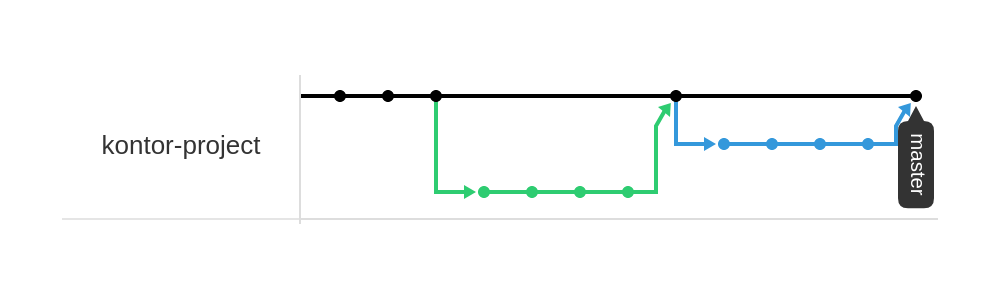
Here the blue and green lines are feature branches, the black line is the master branch, and the dots are commits. Now, let’s see this in action.
Adding a Tail to Kontor
The airplane still has no tail. We’re going to pick a tail configuration, out of: conventional, T shaped, V shaped, H shaped. We’ll benchmark each configuration, and pick the one that minimizes spin (caused by the propeller in pusher configuration), and build complexity. It’s likely going to be a H shaped tail configuration. We’re going to start by creating 4 new branches off of master, one for each tail configuration. Using git fetch we can see all these new branches:
$ git fetch
From https://github.com/kontor-project/design
 * [new branch]      feature/conventional-tail -> origin/feature/conventional-tail
 * [new branch]      feature/h-tail -> origin/feature/h-tail
 * [new branch]      feature/t-tail -> origin/feature/t-tail
 * [new branch]      feature/v-tail -> origin/feature/v-tail
Now let’s start with the v-tail:
$ git checkout feature/v-tail
Branch 'feature/v-tail' set up to track remote branch 'feature/v-tail' from 'origin'.
Switched to a new branch 'feature/v-tail'
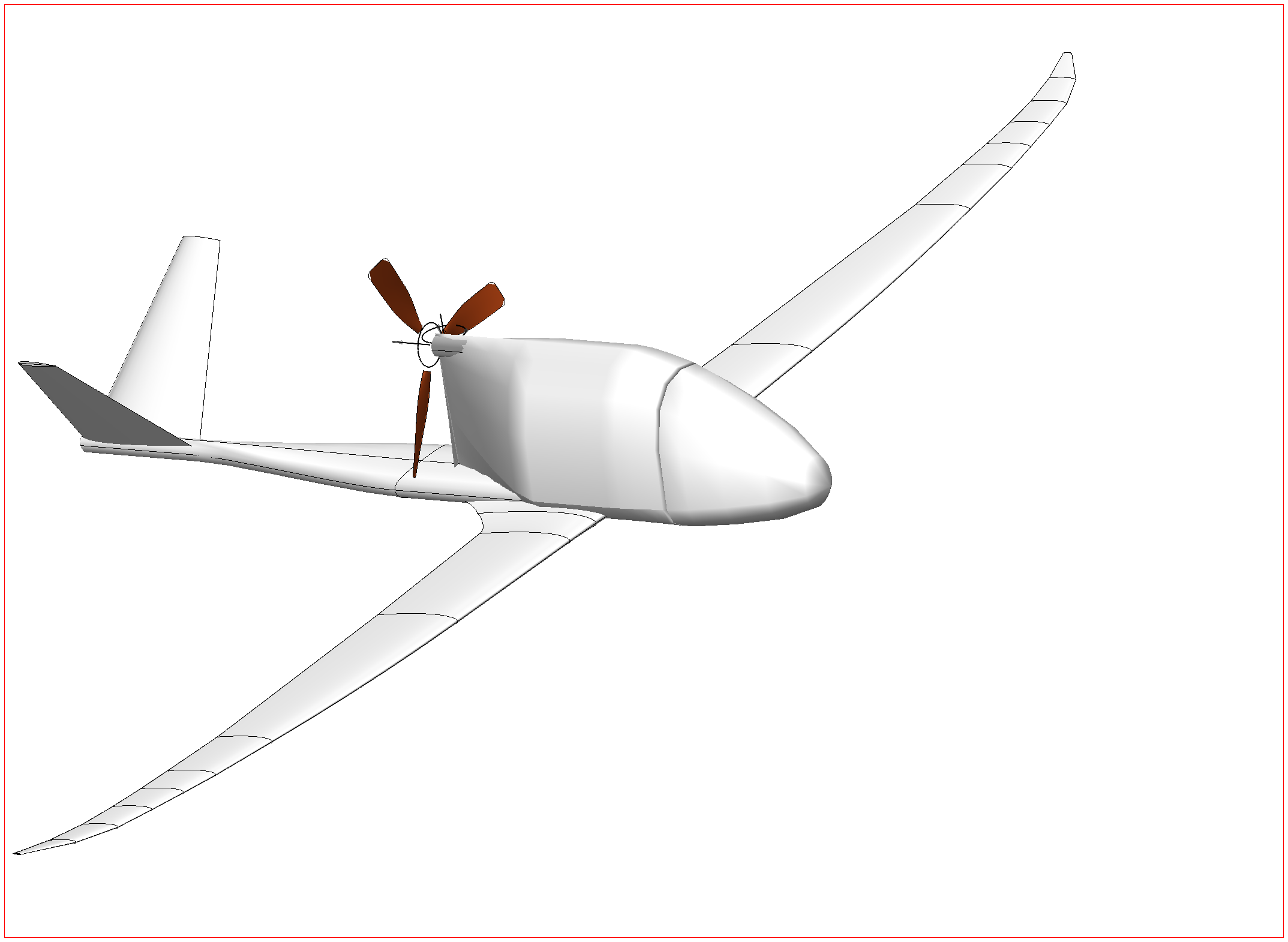
Adding the V shaped tail, the plane will look like this:
And we can now view our changes detected by git:
$ git status
On branch feature/v-tail
Your branch is up to date with 'origin/feature/v-tail'.

Changes not staged for commit:
  (use "git add <file>..." to update what will be committed)
  (use "git restore <file>..." to discard changes in working directory)
	modified:   openVSP/kontor.vsp3
	modified:   openVSP/screenshot.png

no changes added to commit (use "git add" and/or "git commit -a")
Now we know there are two changes, one with the kontor.vsp3 file (the 3d model), and one with the screenshot.png. That’s a picture of the current progress on the airplane. The picture on the front page of this blog comes from the master branch screenshot. That’s how it gets updated without me having to re-deploy this blog. Let’s push these changes up one at a time, to make it easier to review changes in the future. Let’s start with the screenshot. First, we add the changes. This is like selecting which items to put in your cart in a grocery store.
$ git add openVSP/screenshot.png
Easy. Now we commit them, and add a message to the commit. Messages should contain some information on what file you changed, and what you did. This is a bit like queuing up at the cash, getting ready to pay.
$ git commit -m "feat(screenshot) update screenshot"
[feature/v-tail 27db1ce] feat(screenshot) update screenshot
 1 file changed, 0 insertions(+), 0 deletions(-)
 rewrite openVSP/screenshot.png (96%)
Finally, let’s push the commit. The push command will require your username and password. This is like paying for the groceries you just picked up.
$ git push
Repeating the same for the kontor.vsp3 file:
$ git add .
$ git commit -m "feat(kontor) add v-tail"
[feature/v-tail bc58b1d] feat(kontor) add v-tail
 1 file changed, 391 insertions(+), 39 deletions(-)
$ git push
And now, let’s check our git tree, to see what we’ve accomplished:
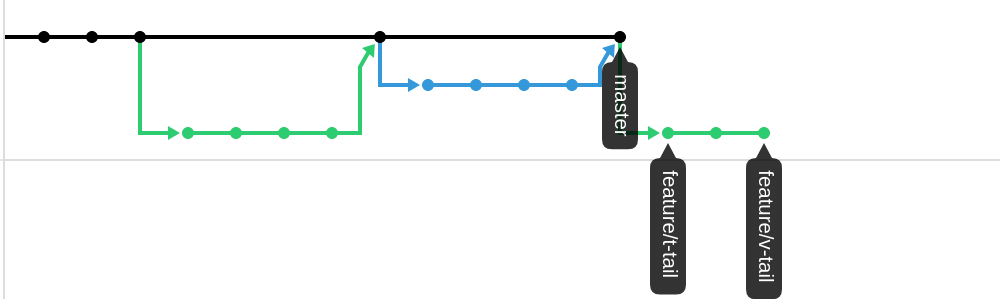
Ideally, when the work is done(ish) it’s time to open a pull request. The purpose of this is to have your work reviewed by people, and you can have a chance to correct errors. But because I’m all by myself on this project so far, I will just approve my own pull requests. In this particular example, I created 4 branches, each with one tail configuration. The airplane will only have one tail configuration, so three of these branches will never get merged. Which will be picked will come in another blog post.
Stuff to Consider
This particular methodology has many more details I decided to exclude for the purposes of keeping this article simple. For more details, you can check this blog post. Here, we can just end with a few extra guidelines:
- Never commit to master, unless it’s the first commit (or second (or third))
- Name your branches after a git issue you’re working on to keep track of things
- Avoid committing too much at once. Many small commits are better than one large one
- If the command line tools for git are intimidating,
consider using a GUI. There are plenty out thereyou’ll get used to them
Can I Use Version Control For Save Games?
Yes, absolutely. In fact, I have a world in Minecraft that’s 10 years old. I just decided to keep it saved in git, and every now and then push up a new commit. This will keep me sane when Windows decides to update.
Thanks!
See my previous post and my next post 🙂
-by Eduardo”